
80s photo trend
The 80s Filter for iPhone
You can get the colour of 1986 out of the iPhone Photos app in about a minute. You cannot get the hair, the shoulder pads or the studio backdrop — and those are what people are actually reacting to.
4.6average rating · 4,109 App Store
The short answer
There is no built-in 80s filter on iPhone. What you can do in the Photos app is approximate the colour: open a photo, tap Edit, and push Warmth up, Saturation down slightly, Black Point up a little and Brilliance down. That gets you faded warm tones. Adding grain needs a third-party editor, because Photos has no grain slider.
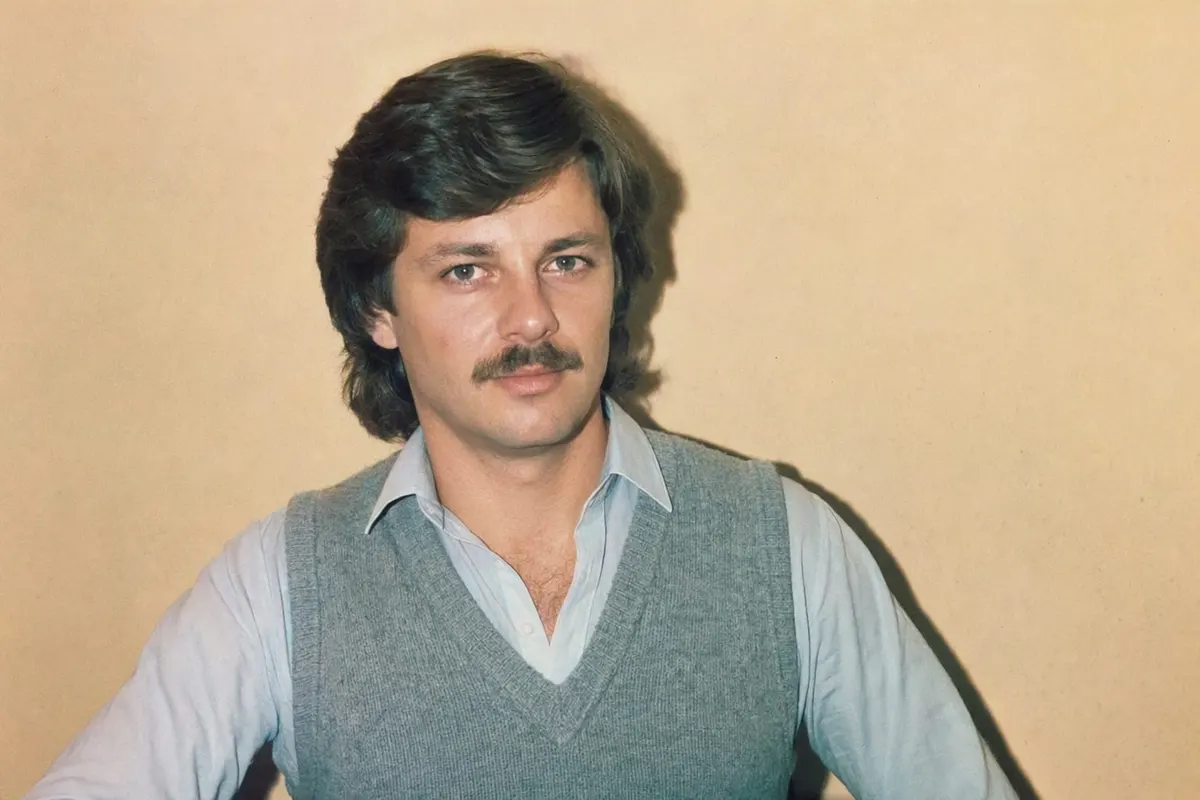
That approximation stops at the surface. A colour grade leaves you with today’s haircut, today’s clothes and today’s soft window light — which is why edited photos read as "a filter" while the trend photos read as "a print someone found". The difference is that the trend restyles the whole picture: hair volume, shoulder pads or denim, a mottled studio backdrop, and a hard on-camera flash instead of ambient light.
FaceCast does that restyling from one photo on the same iPhone, in seconds, with your face preserved and no prompt to write. Free on the App Store, and also on Android.
Getting the 1986 look on an iPhone
Start with an unedited photo
Front-on, sharp, daylight, no sunglasses and no beauty filter. Portrait mode’s background blur works against you here — 1986 compact cameras had deep focus, not shallow.
Decide how far you want to go
Colour only: Photos app, Warmth up, Saturation slightly down, Black Point up. Full restyle: FaceCast’s 80s style, which changes hair, clothing, background and light as well.
Save and post with a label
Save at full resolution, post the before and after together, and tag it as AI-generated when you share it.
What a colour filter can and cannot reach
Can: faded warm colour
Warmth up and saturation slightly down gets close to an aged colour print, where reds and yellows hold and blues drift towards green.
Can: lifted blacks
Raising Black Point mimics the way shadows in an old print never reach true black and pick up a magenta cast.
Cannot: grain
The Photos app has no grain control. Fine, even grain over the whole frame — heavier in the shadows — is one of the first things the eye reads as film.
Cannot: the flash
A bright, flat-lit face with a crisp edge at the hairline and a short dark shadow behind the shoulder is the signature of an on-camera flash. No slider produces it from a photo taken in soft daylight.
Cannot: hair, clothes, backdrop
The volume, the shoulder pads, the popped collar, the mottled blue canvas behind you. These are the parts people comment on, and no colour filter can add them.
Third-party filter apps versus a restyle
Most apps sold as "80s filters" or "retro cam" apps are overlays: grain, light leaks, a VHS scanline, an orange date stamp in the corner. They are good at what they do and they are the right tool if you want a photo of today that looks slightly aged.
The trend is a different thing. It reinterprets the photo as if it had been taken in 1986 — which means changing what you are wearing and how your hair sits, not just the colours on top. That is why the results are worth swiping back and forth on, and why an overlay does not get the same reaction.
On iPhone specifically
HEIC is fine
You do not need to convert anything. Upload straight from your camera roll.
Skip Portrait mode
Its blurred background is the opposite of the deep focus a compact camera gave. A normal photo restyles better.
Turn off beauty smoothing
Skin smoothing removes the detail that makes a result recognisably you.
Live Photos
The still frame is what gets used. No video is generated at any point.
Common questions
Is there an 80s filter on iPhone?+
Not built in. The Photos app can approximate 80s colour with Warmth, Saturation and Black Point, but it cannot add grain, flash lighting, period hair or clothing. For the full look you need an app that restyles the photo, like FaceCast.
How do I make a photo look 80s on iPhone?+
For colour only: Edit, then Warmth up, Saturation slightly down, Black Point up, Brilliance down. For the actual trend look, upload the photo to FaceCast and tap the 80s style — hair, clothing, background and flash change too.
What is the best 80s filter app for iPhone?+
Depends what you want. Retro-cam apps add grain and light leaks over today’s you. FaceCast restyles the whole photo to 1986 while preserving your face; it is free on the App Store.
Does it work on an older iPhone?+
Yes. The processing does not happen on the phone, so an older device works the same as a new one.
Can I use a photo already in my camera roll?+
Yes, including HEIC files straight from the iPhone camera. Avoid ones shot in Portrait mode or with beauty smoothing on.
Is it free?+
FaceCast is free to download on the App Store and Google Play, and the 80s style is there to try.
Go further than a colour filter
Hair, clothes, backdrop and flash — not just the tint. Free for iOS and Android.
4.6average rating · 4,109 App Store