
Trending now
How to Make 80s Photos
The tap takes a second. Choosing the right photo is the part that decides whether the result is worth posting — here is how to get it right the first time.
4.6average rating · 4,109 App Store
The Short Answer
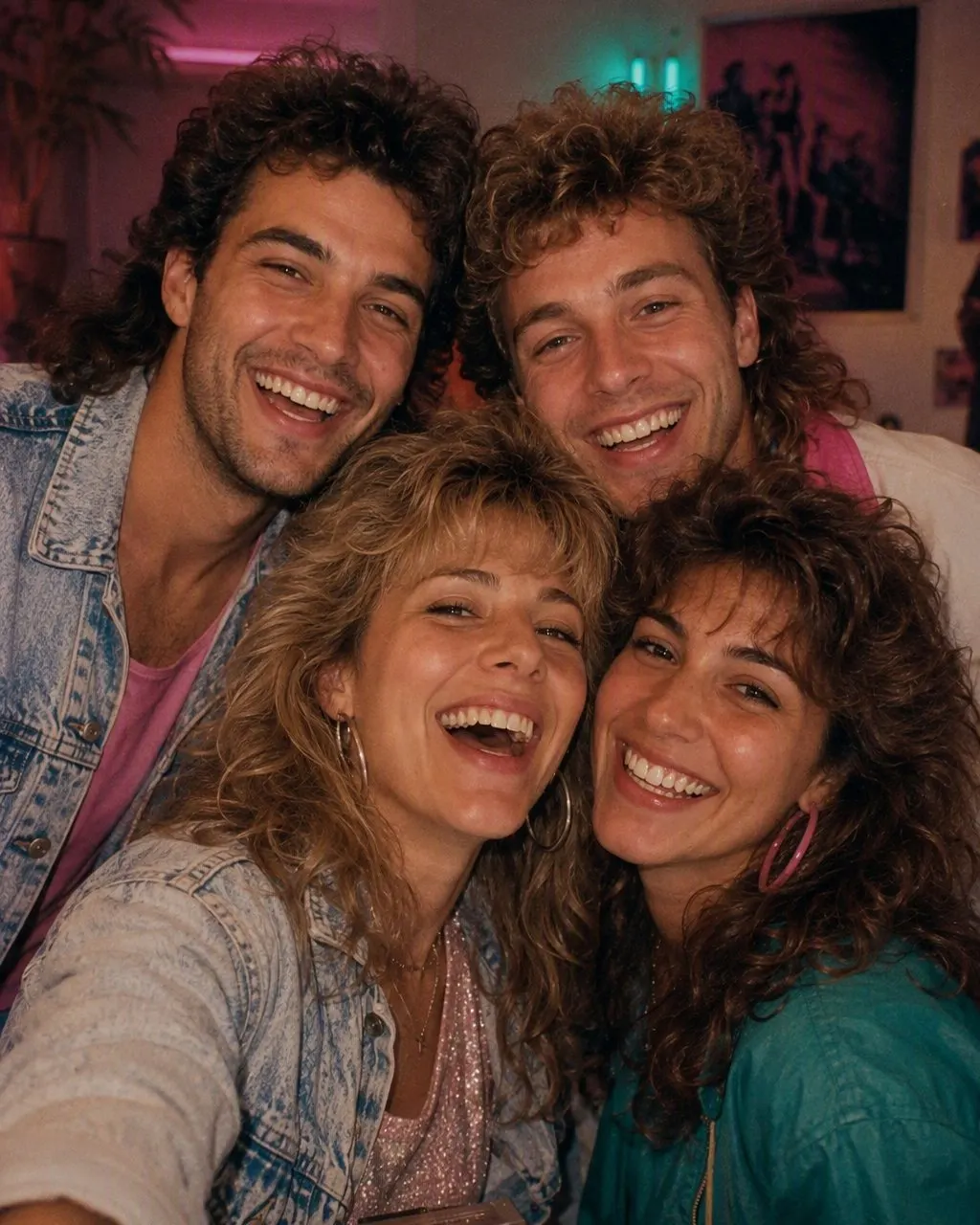
To make photos look 80s, start with one sharp, evenly lit, unfiltered photo, then apply a mid-1980s restyle rather than a colour tint. In FaceCast you upload that photo, tap the 80s style, and the picture comes back in seconds with the hair, clothes and background changed and your face left alone.
The reason to be fussy about the source is that the restyle can only work with what it can see. A photo where the face is half in shadow, or where a smoothing filter has already flattened the features, gives it less to hold on to — and that is where soft, waxy, slightly wrong results come from.
Everything below is the practical version: which picture to pick, how to light it, how long it takes and what to do when the first attempt is not right. It is free on iOS and Android, with no prompt to write and no account to create.

The Three Steps
Choose the photo carefully
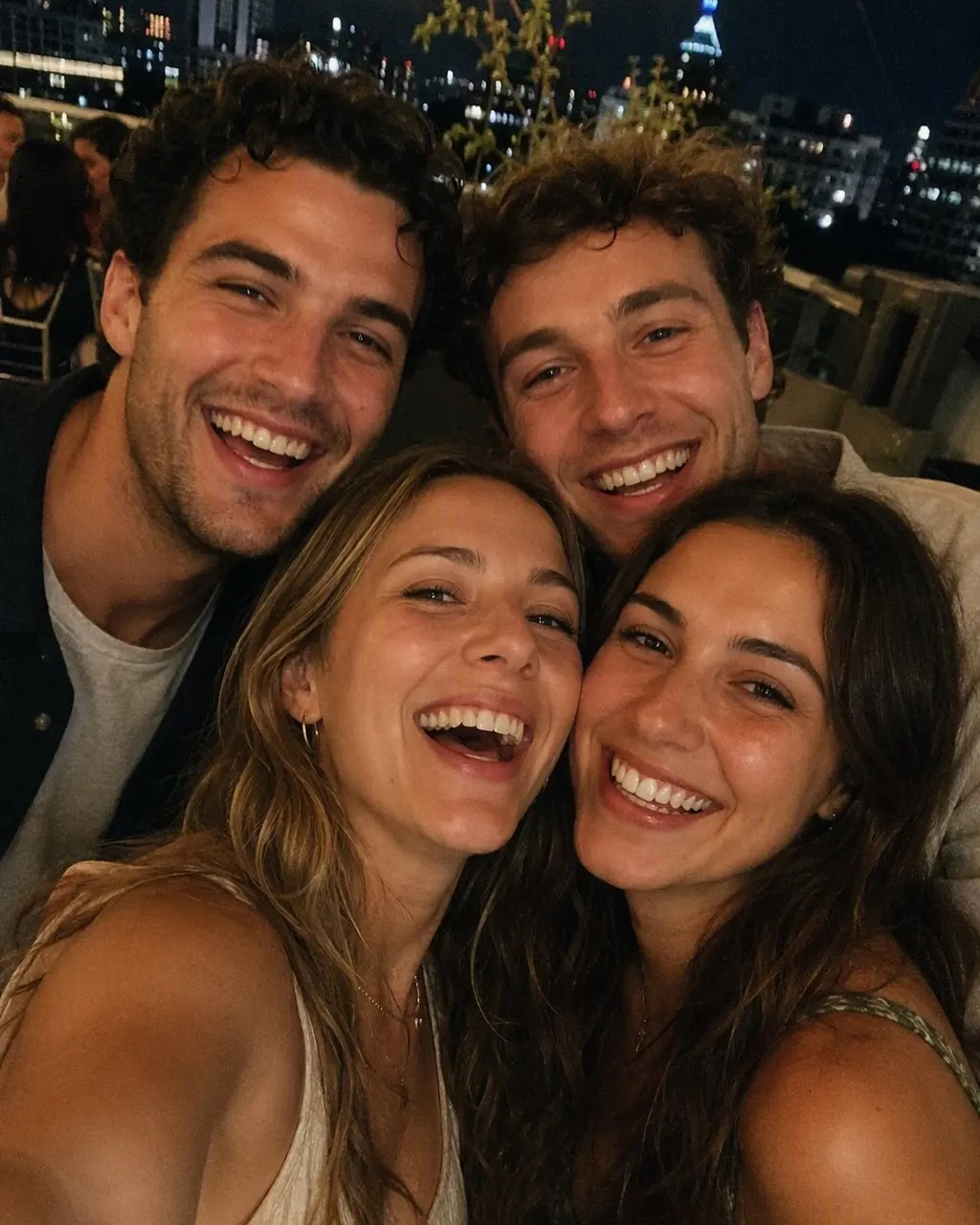
One clear, unfiltered, evenly lit picture with every face you want in the result already in the frame. This is the step that decides the outcome; the other two are mechanical.
Apply the 80s style
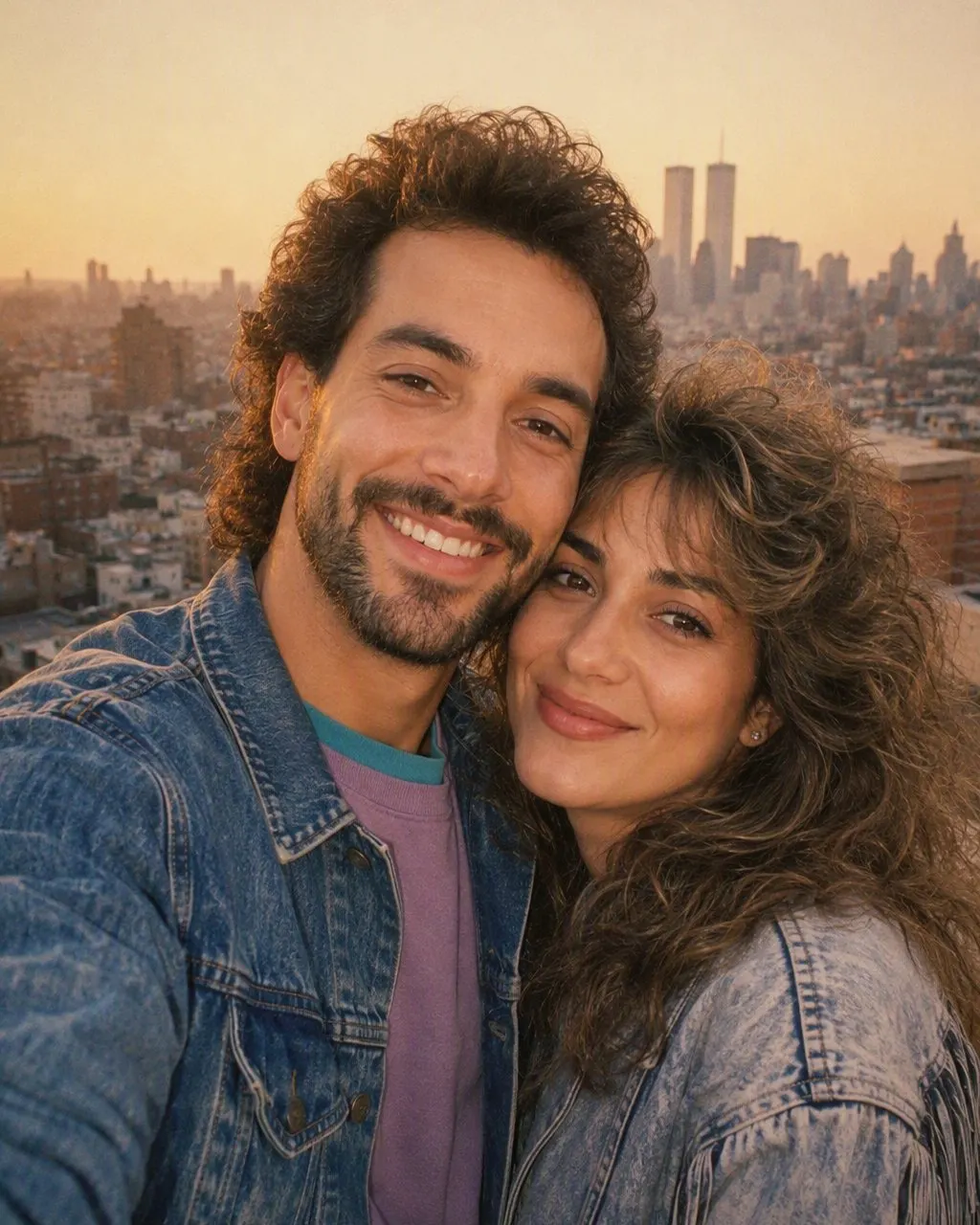
Upload it, tap the 80s look, wait. Nothing to type, nothing to adjust, no reference image to supply.
Check it, then save or rerun
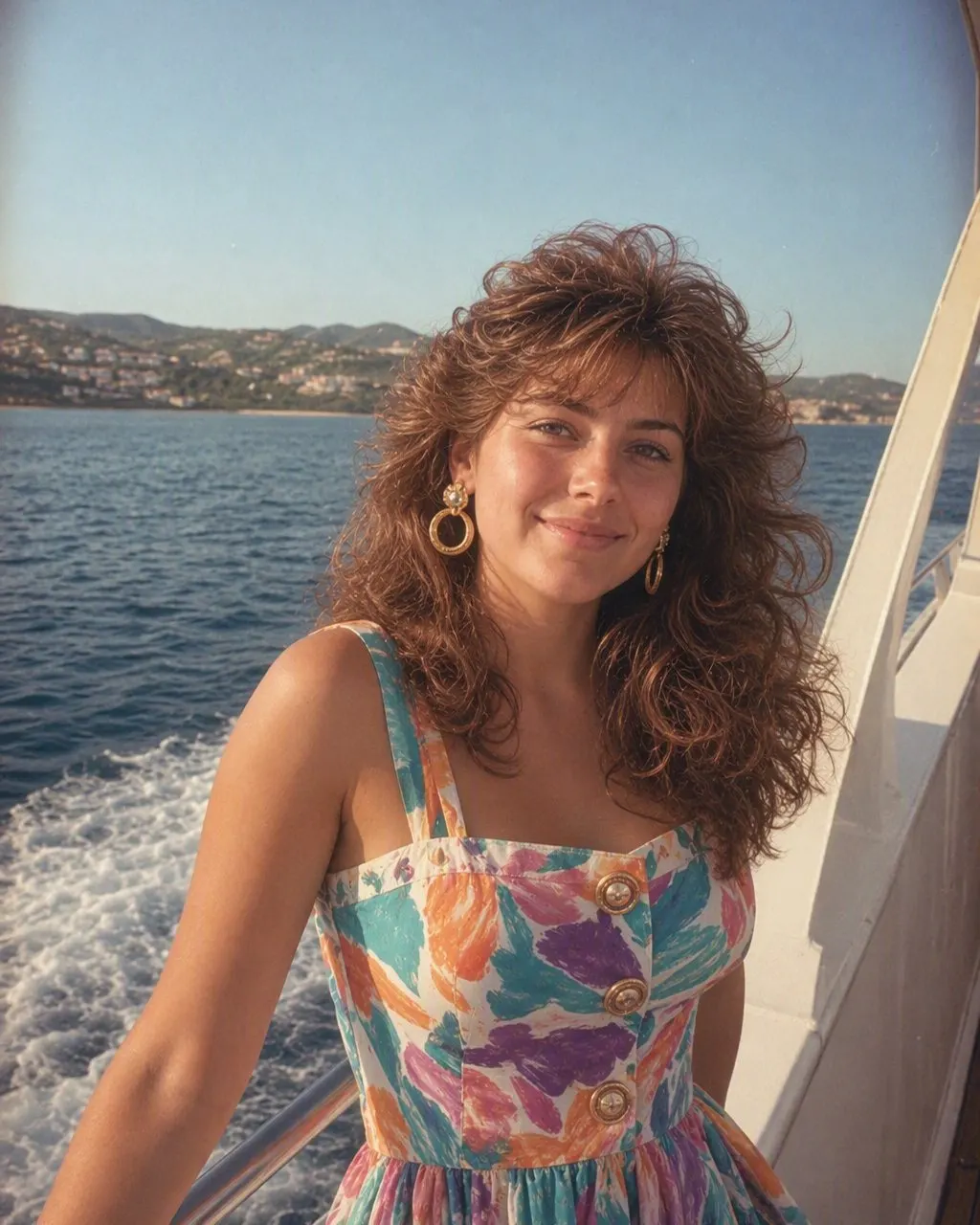
Look at the eyes and the hairline first. If those read as you, the picture is good. If not, rerun with a better source photo rather than accepting the first result.
Which Photo to Pick if You Want an 80s Result
The strongest source photos are dull ones. A plain front-facing picture in flat daylight, no props, nothing dramatic, gives the restyle a clean face and a simple frame to rebuild around. Interesting photos — dramatic backlight, extreme angles, motion blur — tend to fight the effect rather than help it.
Face the camera
Front-on or a gentle three-quarter turn. A sharp profile hides the eye and half the hairline, which is where the era gets built.
Uncover the face and hairline
Sunglasses, cap brims, a hand on the chin and hair swept across one eye all remove detail the restyle needs.
Everyone in one frame
For couples, families or friends, upload a single photo that already has everybody in it. Separate photos cannot be combined into one group result.
Skip the screenshot
A screenshot of a story, or a photo of a photo on a screen, arrives already degraded. Use the original file where you can.
Even Light and No Filter Decide How an 80s Photo Turns Out
Lighting comes first, because the 80s look adds a hard on-camera flash of its own. If the source already carries strong directional light, two lighting schemes end up arguing in one frame: a shadow falling one way from the original, a flash falling another way from the restyle. The face looks subtly wrong even when everything else is right. Stand facing a window indoors or step into open shade outdoors; overcast days are ideal, and midday sun overhead is the worst case, because it drops shadows into the eye sockets and under the nose — exactly the areas that carry recognition.
Then the filter question, which is the mistake that costs the most results. A beauty or smoothing filter works by removing texture: pores, fine lines, the shading around the nose and eyes, the individual strands at the hairline. To your eye it looks cleaner. To a restyle, it looks like missing information. Those small textures are what the model uses to read a face in three dimensions and to work out where hair ends and skin begins. Take them away and it has to guess, so the output comes back soft, waxy and slightly generic — recognisable as a person, not quite recognisable as you. The same goes for heavy denoising, aggressive HDR and any preset that smooths skin.
One sharp unfiltered photo therefore beats a flattering filtered one every time. If your only copy has a filter baked in, take a fresh one: thirty seconds by a window will do it. Do not add your own grain, vignette or warm cast before uploading either — period grain and colour are applied as the last step, and pre-applied grading only stacks on top and muddies it.
What to Do When the 80s Result Looks Off
The face looks smoothed or generic
Almost always a filtered or heavily compressed source. Reshoot without any filter and rerun.
The hair looks stuck on
The hairline was hidden by a hat, a fringe or a strong shadow. Push the hair back off the forehead and take the photo again.
The lighting looks doubled
Strong side light in the original fighting the added flash. Move to flat, even light and rerun.
One person in a group came out weaker
Usually the person turned furthest from the camera or standing partly behind someone else. Retake the group shot with everyone facing forward.
It is fine, you just want a different take
Run the same photo again, or feed it a different source picture. Each run is a fresh result, and it costs nothing.
Frequently Asked Questions
How do I make a photo look 80s?+
Start with one sharp, evenly lit, unfiltered photo, then apply a mid-1980s restyle instead of a colour filter. In FaceCast you upload the photo, tap the 80s style, and in seconds you get a picture with 80s hair, clothes and backdrop and your own face unchanged.
How long does it take?+
Seconds per picture. Picking a good source photo takes longer than generating the result, which is why the choice of photo is worth the extra minute.
Why does my result look soft or waxy?+
Nearly always because the source photo had a beauty or smoothing filter on it, or was a compressed screenshot. Those remove the skin and hair texture the restyle relies on. Take a fresh, unfiltered photo in even light and run it again.
Can I just add grain and a warm tint myself?+
That gives you a modern photo with an old-looking grade — the hair, clothes and background are still current, so it reads as a filter rather than as a period picture. Changing the styling is what sells it; grain is the last five per cent.
Do I need to write a prompt for this?+
Not in FaceCast. The 80s look is a ready-made style you tap, with nothing to type and no account to create. The detailed prompts people share are written for general-purpose chat tools, which need the era, wardrobe and lighting described each time.
Can I do it with a photo of someone else?+
Only with their agreement. Upload your own photo, or a group photo where everyone is happy to take part. When you post the result, add a short note that it was made with AI so nobody mistakes it for a genuine old print.
Try It on Your Best Photo
One clear photo, one tap, a mid-1980s picture in seconds. Free on iOS and Android.
4.6average rating · 4,109 App Store