
Trending in Pakistan
How to Make a 1980 Pic From One Photo
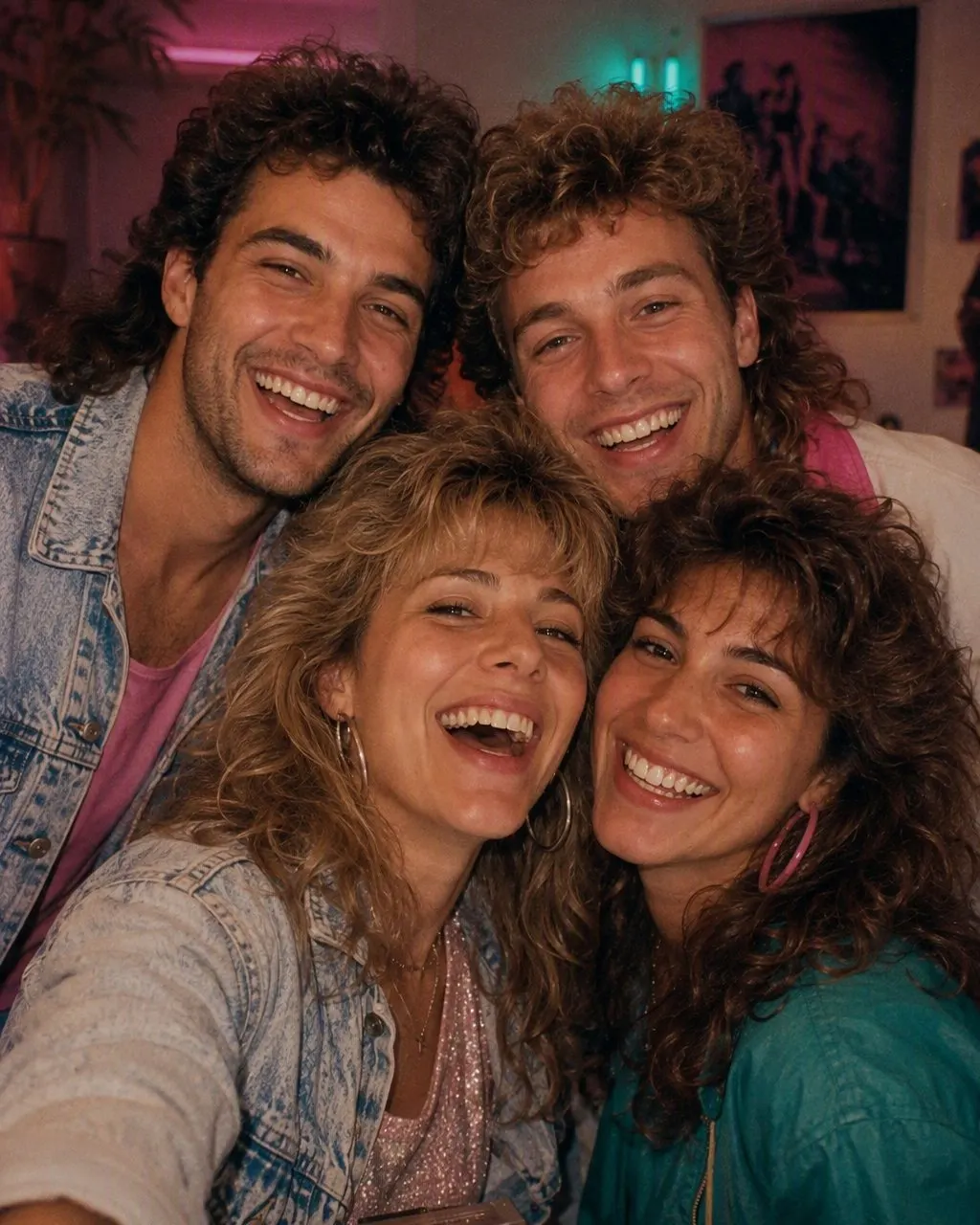
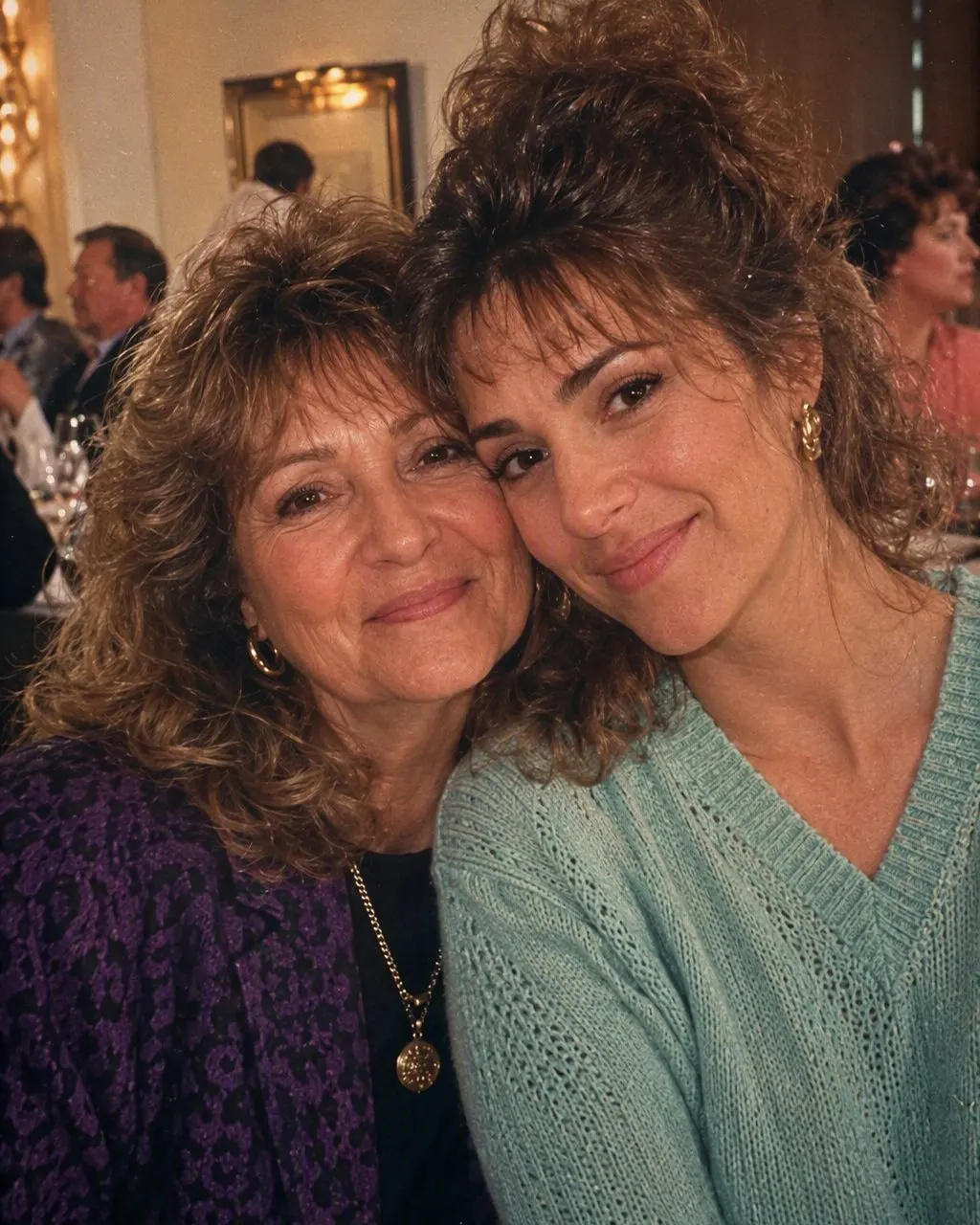
The 1980 pic everyone is posting is not a filter. The hair, the clothes, the studio backdrop and the flash are rebuilt around your face. Here is how to make yours, in seconds with FaceCast or with a prompt in Gemini or ChatGPT.
4.6average rating · 4,109 App Store
80s Photo Style
Pick a use case
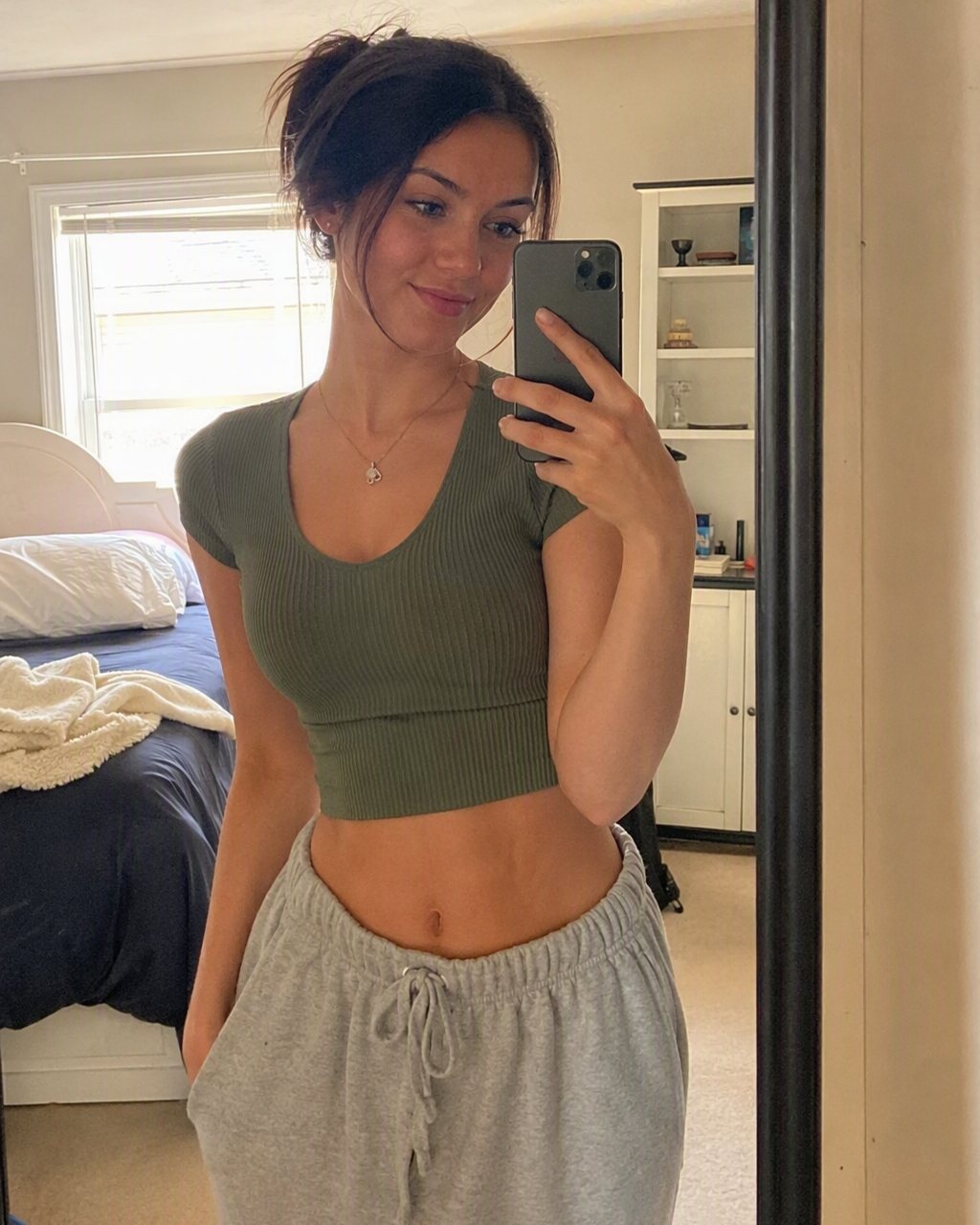
0% · Uploading photo
Processed with FaceCast AI
Download FaceCast to see your own resultSample result ready
Your 80s version is ready. See it at full resolution, save it and share it in the free app.This is a sample photo. Download FaceCast free to get the same result from your own photo in seconds.
Every use case
Real photos you would actually post, next to their 80s versions. Hover to see the result, tap to try the same example.
The Short Answer
To make a 1980 pic you need one clear photo of yourself and one of two tools. The fastest is FaceCast, a free app for iOS and Android with the 80s look built in: upload the photo, tap the 80s style, and the pic is ready in seconds with your face, skin tone and expression kept and only the hair, clothes, accessories, backdrop, flash and film grain changed. Nothing to type, no account needed to try it.
The other route is a prompt. Attach your photo in Gemini or ChatGPT and paste a prompt that locks your identity in the first line, then lists what may change: mid-1980s hair, period clothes, a studio backdrop, a direct flash, faded warm colour and grain. It works, it is free to try, and it usually takes a few attempts because the face drifts a little on every run.
Either way the pic you start with matters more than the tool. Face front-on, sharp, in daylight, no sunglasses, no beauty filter. That one choice decides most of the result.


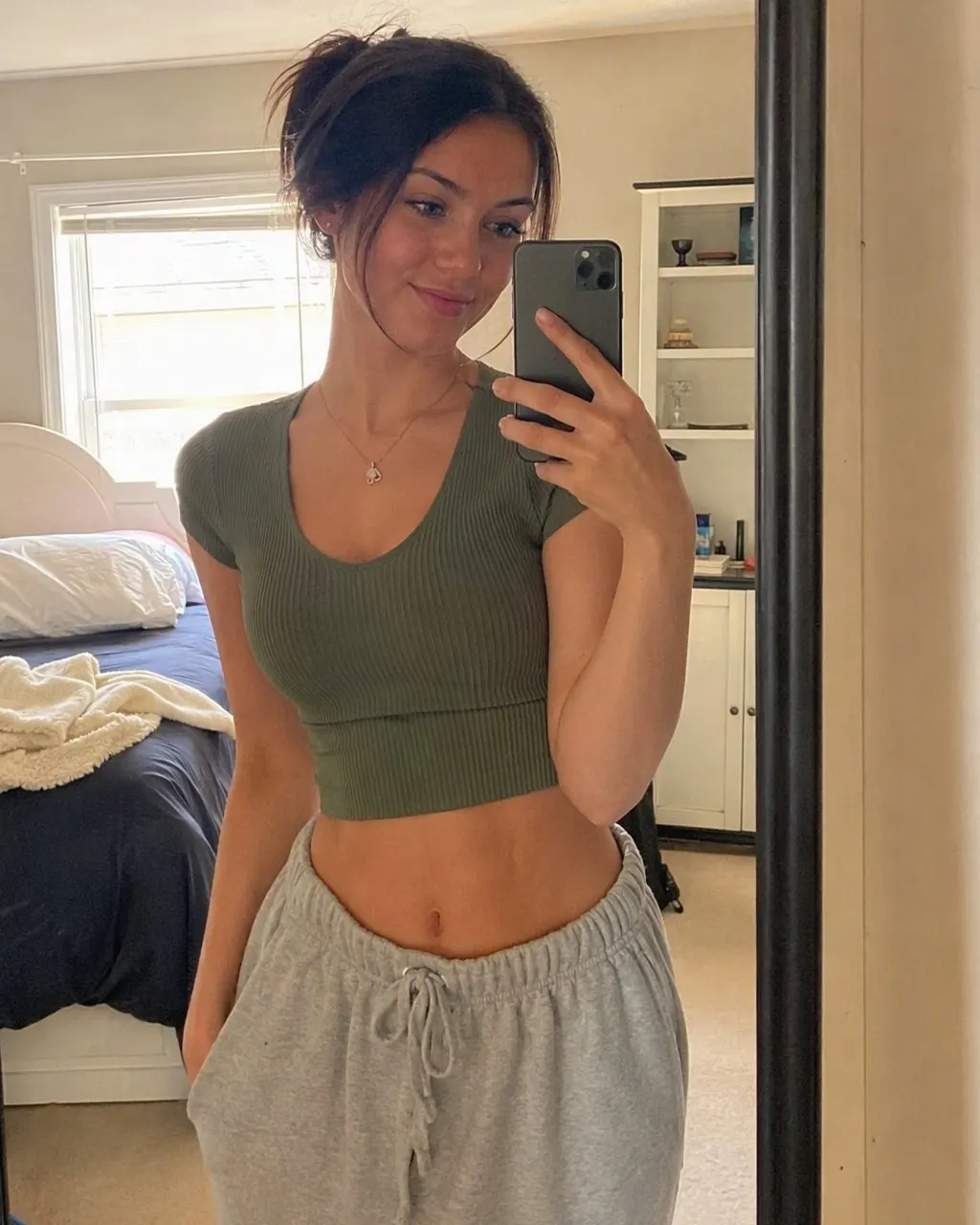
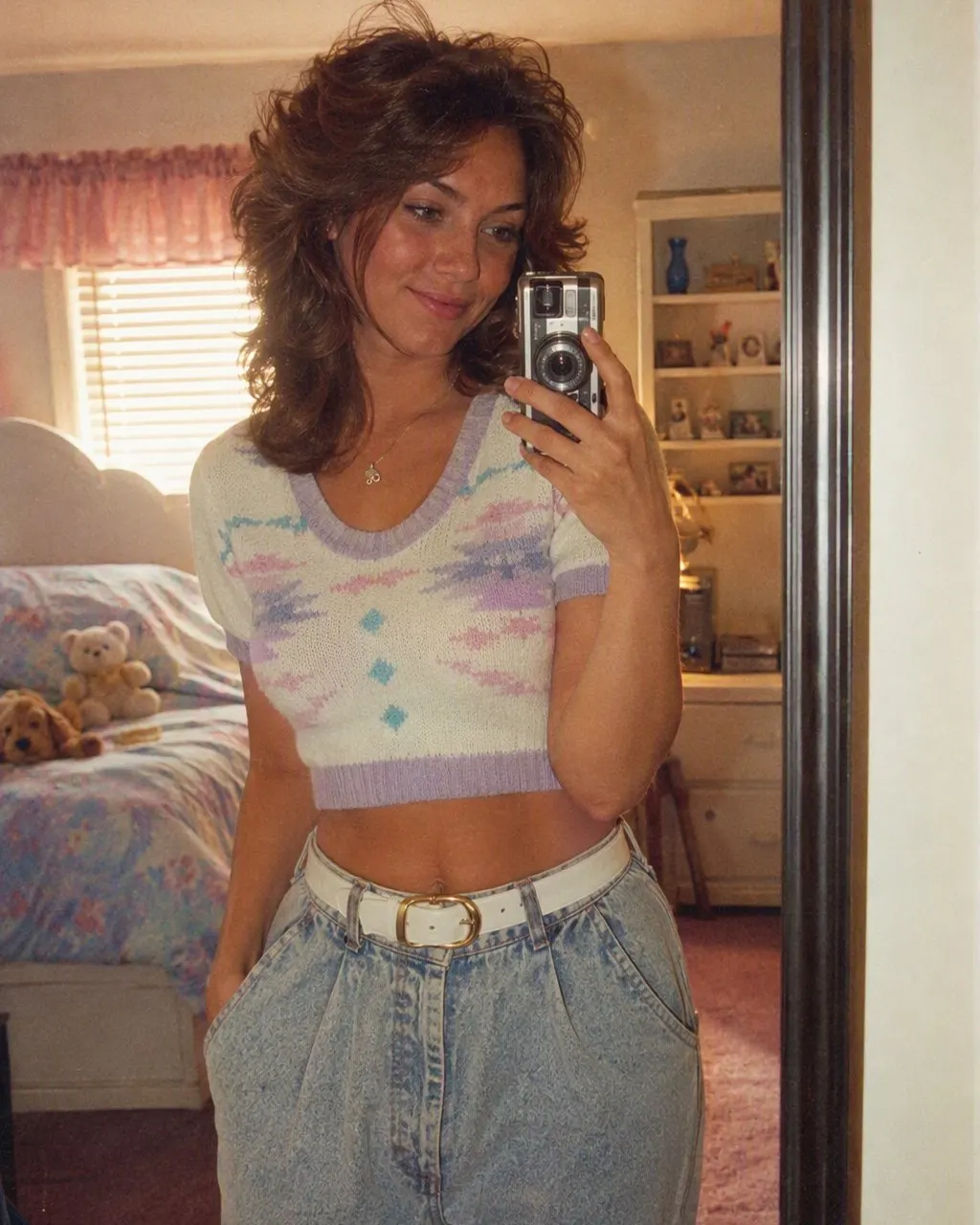
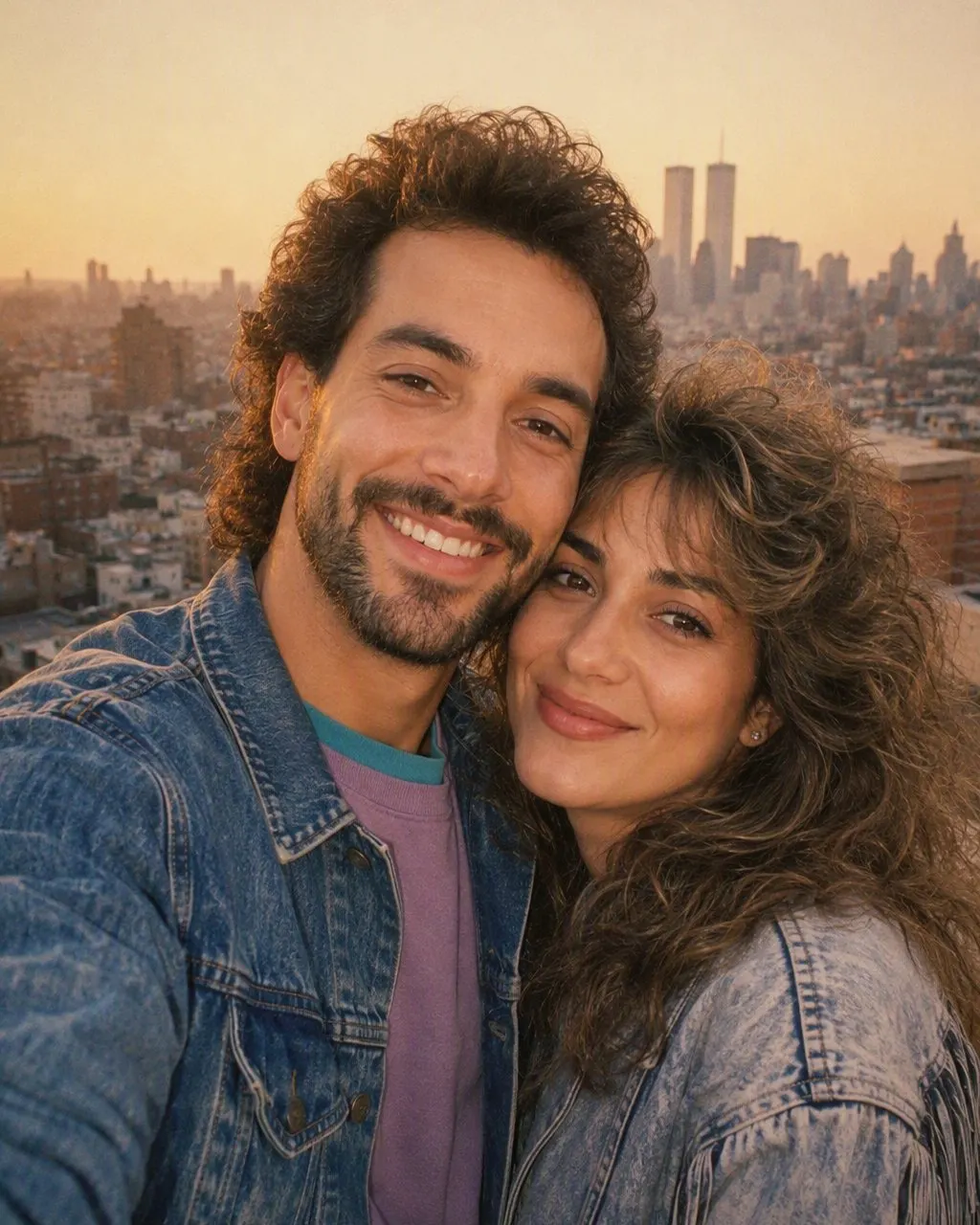
How to Make a 1980 Pic in Three Steps
Pick the right photo
A clear front-on photo from your gallery: good light, no sunglasses, no smoothing filter, plain background if you can. A selfie near a window beats a posed shot in a dark room. For a couple or group pic, make sure no face is hidden behind another.
Run it through one tool
FaceCast: install from the App Store or Google Play, upload the photo, tap the 80s style, wait a few seconds. Gemini or ChatGPT: attach the photo and paste a prompt that says your face stays exactly as it is and only the hair, clothes, background and lighting change to the mid-1980s.
Save and post it
Save the pic to your gallery and post it as a before-and-after, the 1980 version first. Add a short “made with AI” note so nobody takes it for a real old print.
App or Prompt: Which Way to Make Your 1980 Pic
Both routes make the same kind of picture. The honest difference is about typing, attempts and how tightly the face is held.
The app route
Upload, tap, save. The 80s look is a fixed style, so the face handling is the same on every run and a couple or group pic comes back with every face kept. You do not choose the outfit; the style decides the hair, clothes and backdrop.
The prompt route
Paste, compare, correct, paste again. You get full control over the wording, so you can ask for a specific shalwar kameez, a particular blazer or a Karachi studio backdrop. The trade-off is that the face can drift between attempts, most of all in group pics.
Convert an old pic or a new one
Both routes work from any photo in your gallery, old or new, as long as the face is clear. A screenshot of a low-quality picture gives a soft, waxy result; use the original file if you have it.
The Two Things That Usually Go Wrong
The face does not look like you
On the prompt route this means the identity line was missing or came after the clothing list. Put “keep my face, features, skin tone and expression exactly as they are” in the first sentence. On the app route the face is kept by default; if the result looks off, the source photo was probably blurred or already filtered.
It looks like a filter, not a 1980 pic
A warm tint and grain over a 2026 haircut and a 2026 hoodie is a filtered selfie, not a 1980 pic. The look only works when the hair, the clothes and the backdrop change too. That is what the FaceCast style does in one tap, and what a good prompt has to spell out.
What It Will and Will Not Do
FaceCast makes a still image from one photo. It does not make video, it does not age anyone up or down, it does not add celebrity faces, and it does not restore or colourise damaged old prints. The result is not a valid ID or passport photo.
Upload your own photo, or a group photo where everyone is happy to take part. Your photo is used only to generate your result; it is not sold or shared for marketing.
Frequently Asked Questions
How do I make a 1980 pic for free?+
Install FaceCast on iOS or Android, upload one clear photo and tap the 80s style. The pic is ready in seconds and you can try it without creating an account. Gemini and ChatGPT also make one from a prompt on their free tiers, with a few attempts.
How do I make a 1980 pic without a prompt?+
Use an app with the look built in. In FaceCast the 80s style is a single tap: there is no prompt box, no settings and nothing to describe. The hair, clothes, backdrop, flash and grain are all part of the style.
Can I convert an old picture into an 80s pic?+
Yes, as long as the face is clear and front-on. Any photo in your gallery works, old or new. A blurred or heavily filtered source gives a soft result, so use the original file rather than a screenshot.
Why does my 1980 pic not look like me?+
On a prompt, the identity instruction was probably missing or came too late in the text. Put it first. In FaceCast the face is kept on every run; a result that looks off usually means the source photo was blurred, side-lit or already smoothed by a beauty filter.
Does it work for couple and group pics?+
Yes. Upload one photo with everyone in it and every face is kept. Group pics are where a prompt drifts most, so the app route is the safer one for them.
Does FaceCast make a 1980 video?+
No. It makes a still image only. It also does not age faces, add celebrity faces or restore old prints.
Make Your 1980 Pic Now
Install FaceCast, upload one photo and tap the 80s look. The pic is ready in seconds, free on iOS and Android, nothing to type.
4.6average rating · 4,109 App Store