
Trending now
Convert a Photo to 80s Style: What Actually Changes, and What Stays
When you convert a photo to the 80s, five things should change and one thing should not. Here is what a proper 80s photo converter does, the two ways to do it, and how to tell a good conversion from a bad one at a glance.
4.6average rating · 4,109 App Store
How to Convert a Photo to 80s Style
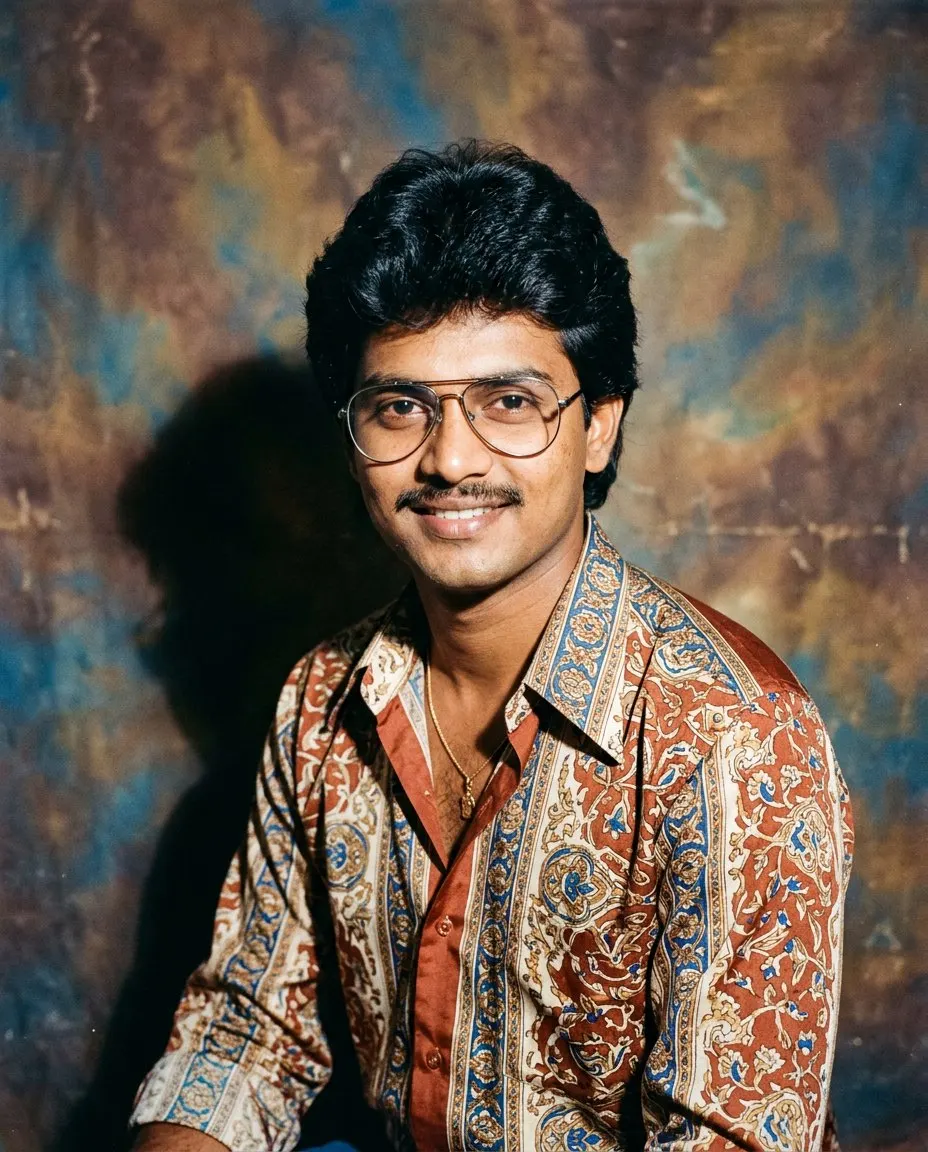
The one-tap way: download FaceCast free on iOS or Android, upload the photo, and tap the 80s style. The converted photo comes back in seconds as a mid-1980s studio portrait, with your face, features, skin tone and expression kept and only the hair, clothes, accessories, backdrop, flash and film grain changed. No prompt, no account to try.
The prompt way: attach the photo in Gemini or ChatGPT and paste a prompt that begins “keep my face, features, skin tone and expression exactly as they are, do not lighten the skin” and then asks for mid-80s hair, shoulder pads or a wide-collar shirt, a direct flash, film grain, faded warm colour and a mottled studio backdrop. It converts the same way, and it can take a specific outfit request, but the face is held only as tightly as your wording and it drifts between attempts.
Either way, a conversion is a new still image made from your photo. It does not make a video, it does not age you, and it does not restore a damaged old print; the source photo should be a normal, clear picture of you today.


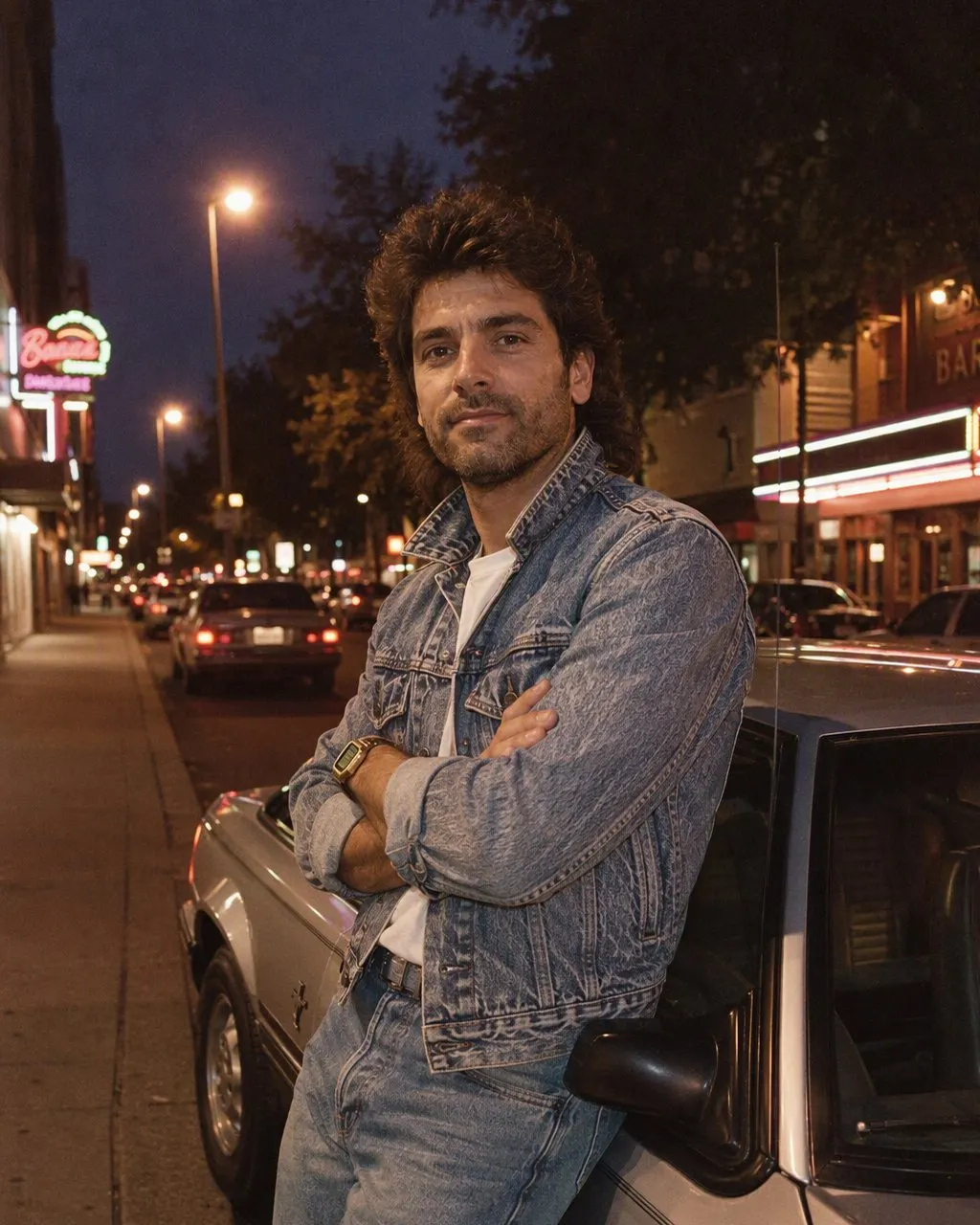
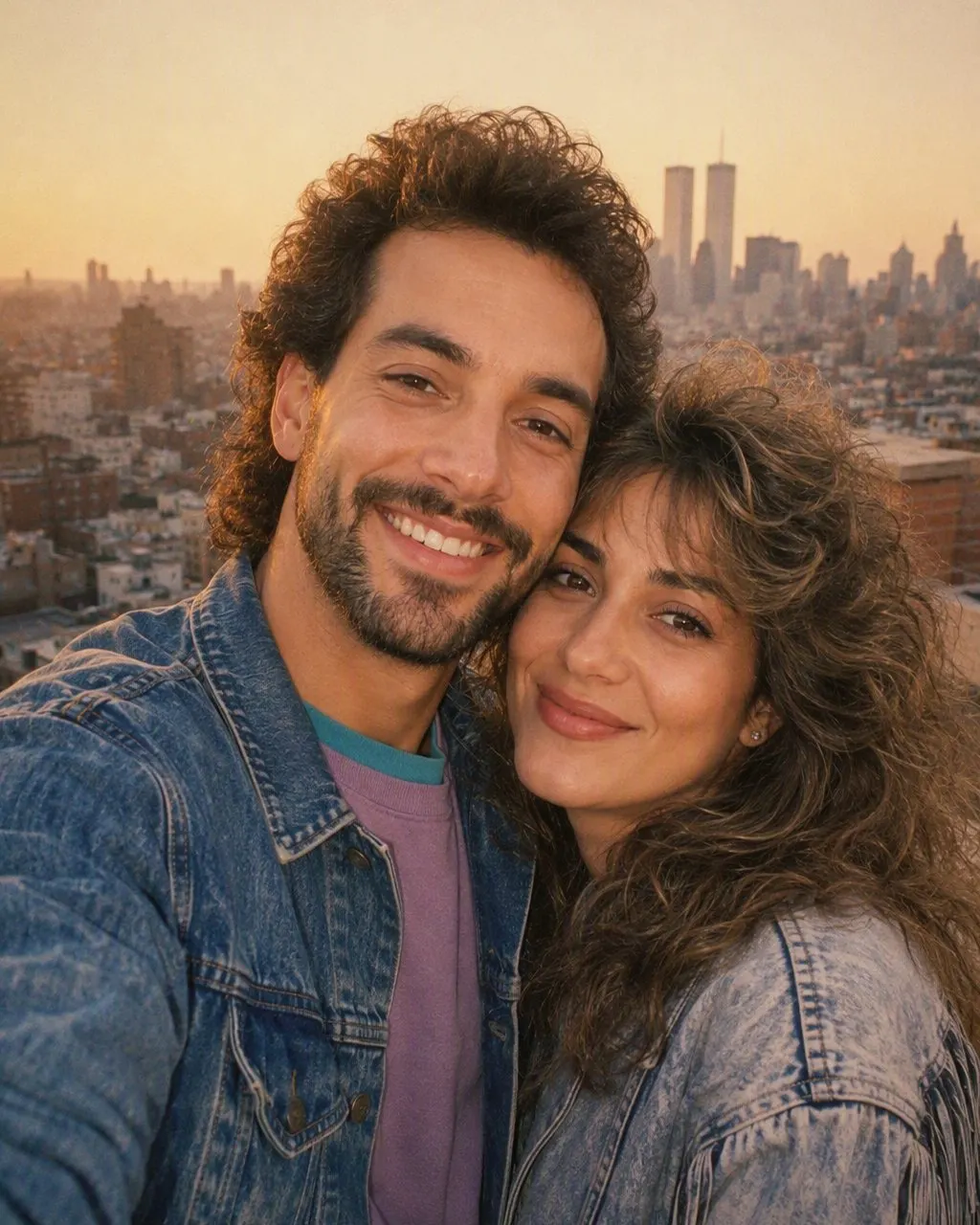
Convert in Three Steps
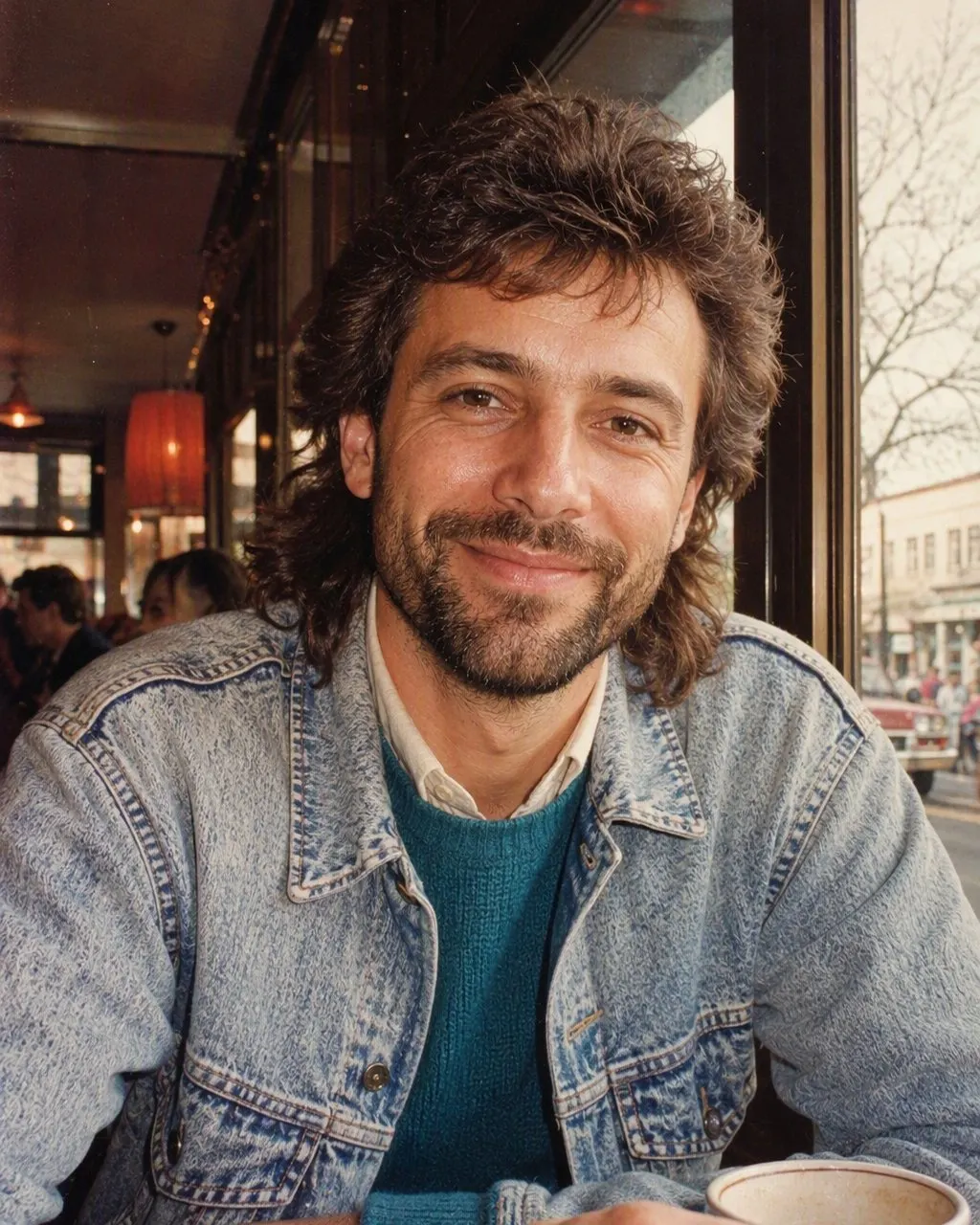
Start from a clear photo
Front-facing, evenly lit, nothing across the eyes or jaw. The converter can only hold what it can see.
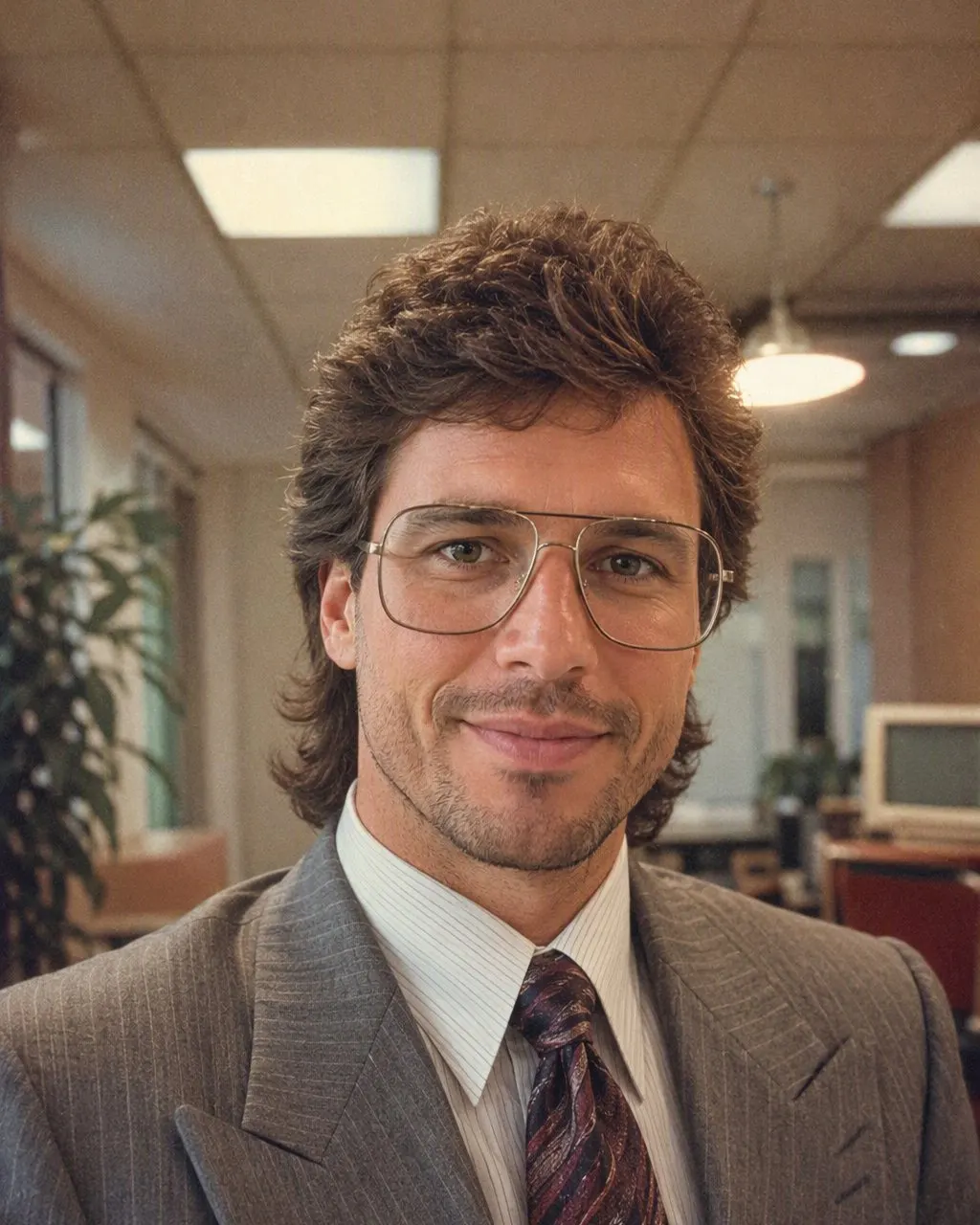
Tap the style, or paste the prompt with the identity line first
In FaceCast there is nothing to describe. In a chat tool, the “keep the face exactly” sentence goes first and the hair, clothes and studio details go after.
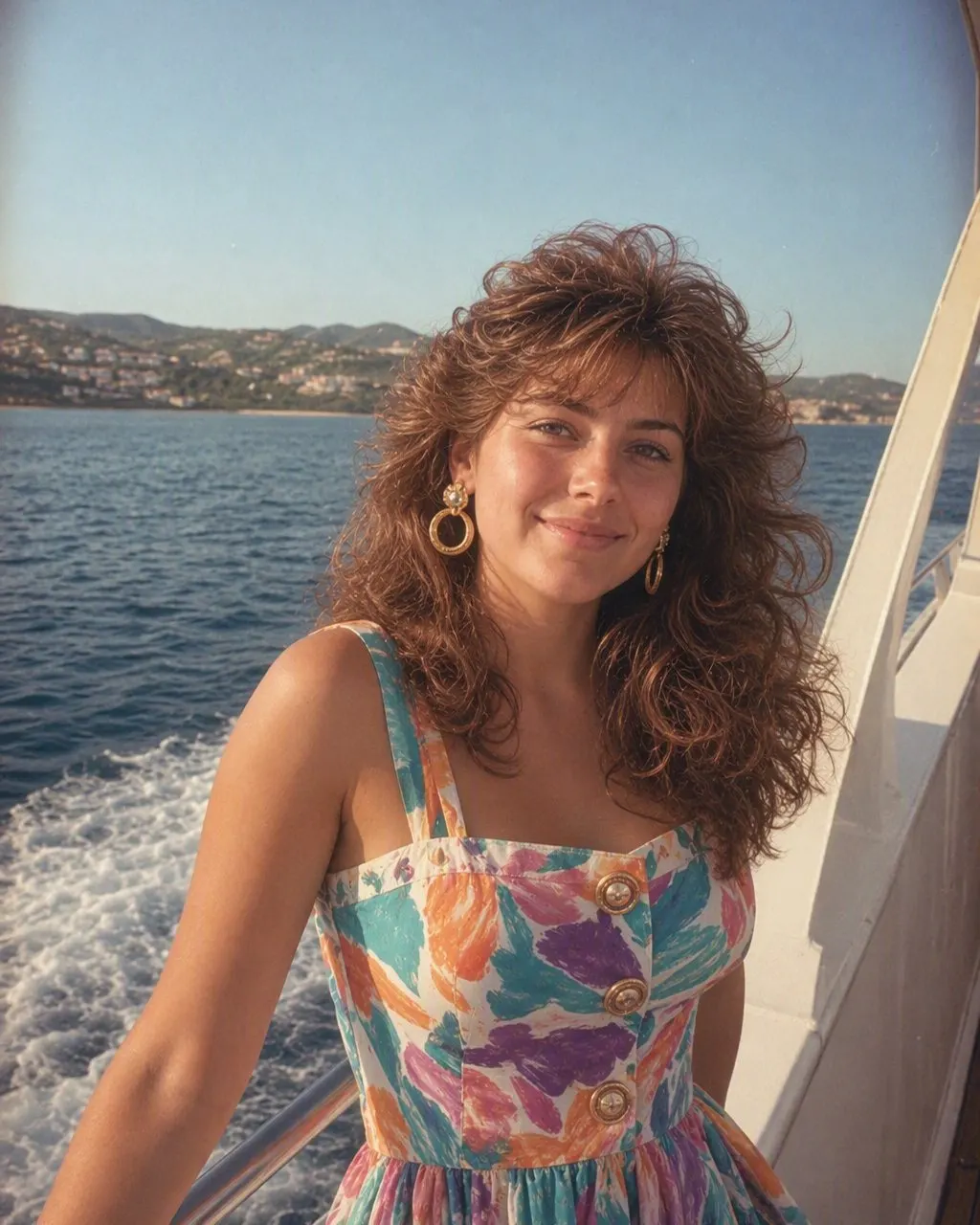
Check the conversion at three points
Jawline, nose, distance between the eyes. If any has moved, the conversion failed at the one thing it must not change. In the app they match on every run; in a chat tool, reply that the face must match the original and run again.
What a Good 80s Photo Converter Changes
An “80s filter” that adds grain and a warm cast is not a conversion; it leaves you in your current hair and clothes with a colour shift. A real conversion changes five things together and keeps one.
Changes: the hair
Volume at the crown, a feathered or permed finish, a swept fringe or a fuller side part.
Changes: the clothes
Shoulder pads, a wide-collar silk shirt, a printed saree with a matching blouse, a safari suit, thin gold jewellery.
Changes: the light
A direct on-camera flash, a bright foreground and a small hard shadow behind the shoulder.
Changes: the film
Soft grain and faded, warm colour.
Changes: the backdrop
A mottled blue or grey studio canvas or a painted curtain.
Keeps: the face
Features, skin tone, expression, age. If the conversion lightened your skin or reshaped your jaw, it is not a conversion of you.
Converting Couple, Family and Group Photos
Group photos are the hardest conversion for a prompt, because it has to hold several faces at once and usually lets one go. In FaceCast every face in the frame is kept the same way one face is, so a couple photo, a Diwali family portrait or a college group pic converts in the same single tap.
Whichever route you use, convert your own photo or one everyone in it agreed to, and add a short “made with AI” note when you post the result. FaceCast uses your photo only to generate your result; it is not sold or shared for marketing.
Frequently Asked Questions
How do I convert my photo to 80s style?+
Download FaceCast free on iOS or Android, upload the photo and tap the 80s style; the converted portrait is ready in seconds with your face kept. Or paste the prompt for the 80s photo into Gemini or ChatGPT; the full text is on this site.
Can I convert a photo to the 1980s without a prompt?+
Yes. In FaceCast the 80s look is a fixed style, so there is nothing to type: one photo, one tap.
Does the 80s photo converter change the face?+
It should not. In FaceCast the face, skin tone and expression are kept on every run. In a chat tool the whole image is regenerated each time, so keep the identity line first and check the jaw, nose and eyes after every attempt.
Can I convert an old photo to 80s style?+
The converter works from a normal, clear photo of you today. It does not restore damaged or faded prints, and a scan of a poor old photo gives a poor result. Start from a recent, well-lit picture.
Can I convert a group photo to the 80s?+
Yes. In the app every face is kept the same way one face is. In a prompt, add one identity line per person and expect more attempts.
Is the 80s photo converter free?+
FaceCast is free to download and you can try the 80s style without an account. A Gemini or ChatGPT prompt is free within your plan’s image allowance.
Convert Your Photo in One Tap
Upload one photo, tap the 80s look, and the converted portrait is ready in seconds with your face kept. Free to download on iOS and Android.
4.6average rating · 4,109 App Store